The Colonial Heritage Tech Club steering team will contribute articles that we hope will be of interest to club members.
Tuesday, April 21, 2026
Glo Fiber in Colonial Heritage: I have Cox Cable Internet and TV so why should I switch to GloFiber Internet?
Sunday, August 17, 2025
FiOS Internet Update for Colonial Heritage
If you have not been contacted by FiOS via a door tag or by an official Verizon representative at your door you can contact them directly at (800) 922-0204 to confirm Internet availability at your home and to arrange an installation date.
Here is an overview of the installation process: (the installation charge should be waived)
The FiOS installation technician will trench a fiber line from the street to a junction box on the side of your house. They will then typically install their fiber modem (ONT) inside the garage. They will connect the ONT to an existing Ethernet cable or they will re-purpose one CAT-5 telephone line in the house. If you don’t plan to use Mesh, select a phone jack that is as central in the home as possible. The Ethernet cable can be connected to a modem-router (Gateway) which Verizon will provide to you at no cost. For improved coverage, you can connect directly to a multi-node Mesh router. You might want to refer to this article written by the CH Tech Club on how to connect a Mesh router to an ONT. Whichever router you decide to use, it is recommended that you select your own network name (SSID) and password, not the default provided.
The US is transitioning from cable TV to streaming. According to the latest statistics from Grok 83% of US TV viewing is done using Internet streaming! This means if you are switching from Cox Cable TV and are not already a streamer you will need to select from one of the available services which includes YouTube TV, Hulu Live TV, DirecTV, Fubo or Sling TV. We encourage you to use this handy table of subscription streaming providers and available channels compiled by CNET to help with your selection. For maximum cost savings, you might want to consider an over-the-air antenna to receive free local network channels. If you are unsure of the monthly costs and savings to stream, our Tech Club streaming calculator can help you make this decision.
For help with any of this information, reach out to the Croucher Group for assistance.
Wednesday, May 22, 2024
How to rescan for local OTA Channels in SlingTV
One of the requirements for receiving a good antenna signal is to need to rescan channels quarterly. For those of you with Sling and an AirTV digital tuner, here are the simple steps to follow:
From within the Sling mobile App:
- Select your account icon in the upper right corner of the app
- Select Local Channels
- Select Connected Device
- Select the name you assigned to your local device, the default is "AirTV"
- Select Rescan Channels
- Select "outdoor antenna"
- Leave the device name - click Next
- Enter your local zip code - click Yes
- Antenna placement (make no change) - Click Next
- Antenna connection (make no change) - Click Next
- Start to Scan which should complete in 1 minute.
- Click "Personalize my guide now"
- Click "Deselect All"
Tap twice to "favorite" a channel
Tap 3 times to unselect
Only select strong (green) channels
Here are my filtering suggestions:
3.1 CBS
8.1 ABC
10.1 NBC
15.1 PBS
15.2 PBS World
15.4 PBS Create
27.1 CW
43.1 Fox
49.1 Ion
49.2 Scripps News
49.3 Ion Mystery
- Click Finish to save your settings
Monday, March 25, 2024
A quick background about Cox email service transition
It has always been the position of the Colonial Heritage Tech Club that Internet Service Provider (ISP) email services should never be used. Email is not their core business and as such alternate email services such as Gmail, Live Mail, Yahoo Mail and other more robust sustainable services should be considered.
Changing email can be traumatic and disruptive so pick the right service that likely will never require future changes.
On August 15, 2019, Cox stopped offering new email accounts. They are now taking the final step to discontinue their email service and contracted to transition to Yahoo unless you make other arrangements such as Gmail or Outlook.
Will you lose your Cox Email address if you move or transfer service? No, if you transfer your email service you can keep your XXX@cox.net email account address if you decide to switch to Yahoo. However, if you discontinue your Cox service without accepting Yahoo Terms of Service, you may lose your email account after the 90-day grace period has ended.
Why is Cox doing this? Internet and mobile provider Cox is stepping away from email hosting services. “To ensure the best email experience possible for our customers, we have decided to transition email service and support of your cox.net email to Yahoo Mail,” Customers were informed in a post on Jan 3, 2024.
Most experts consider Gmail to be an all around better email service by nearly all metrics when compared to Yahoo. Cox has partnered with Yahoo so for some Cox customers accepting the Yahoo terms of service may be the simplest choice because your email address will remain unchanged. Whereas moving to Gmail will require that you update your email address to XXX@Gmail.com. With either choice, all of your email content will be retained.
Here are the steps for how to complete the transition if you choose to move to Yahoo. Remember, you must accept Yahoo TOS: https://www.cox.com/residential/support/completing-the-transition-to-yahoo.html
Here are the steps to follow to access your email if you've chosen to use Yahoo after the transition: https://www.cox.com/residential/support/access-and-log-in-to-yahoo-mail-after-transition.html
Here are the steps to follow if you would like to move your Cox email to a service other than Yahoo such as Gmail or Outlook: https://www.cox.com/residential/support/transfering-cox-email-content-to-another-email-provider.html
If you decide to move your email to another provider and will use a new email address, don’t forget to let your key contacts know you’ve changed your email address! Set up a permanent away note in your Cox.net webmail account by using their Vacation Reminder service. Here are the simple steps: https://www.cox.com/residential/support/cox-email-settings.html#VacationNotice
Add a statement similar to the following in your Vacation Notice, “Thank you for writing. I will no longer be using this email address. Please replace my XXXX@cox.net with my new XXXX@Gmail.com address in your address book.”
If you decide to send a mass email announcement to a large group of your contacts, please make sure to put all of the addresses in the BCC section to avoid exposing everyone’s email addresses to each other!!
Colonial Heritage Resident Directory: Regardless of your decisions, please make sure that all of your contact information is current in the ColonialHeritage Resident Directory.
Yahoo Support should be able to provide additional assistance and can be reached at 866-562-7250.
If you still have any additional questions you can reach out to the Colonial Heritage Tech Club or The Croucher Group
Monday, November 27, 2023
Tis the season to Drone…
By Kevin Kimmel
As the holidays approach, lots of drone options will become available for all those well deserving, children, grandchildren and kids at heart! After my drone presentation to the Tech Club this past September, I thought it would be a good followup to post a few links to some decent drone holiday gifts.
If you're looking for outdoor flight options with high level video and photography, I strongly recommend any of the dji products. Their flight control systems have been perfected and they are rock solid flyers - if you READ THE DIRECTIONS and follow the recommended preflight preparation!!!
For the young (or old) pilot in training and you just want to have some fun indoors, I recommend some of those very small mini copters. Search Amazon using the phrase “Drones for kids indoors” and you’ll be overloaded with options. They are so small and so light that they can crash into things and usually come away without damage. Because when you are learning, you WILL crash into things. Indoors and outdoors. It’s not a question of “have you crashed” it’s more like “How long has it been since your last crash?”
For little ones (children) that have not developed fine motor skills and eye-hand coordination of older adults something like the hand motion controlled indoor drone below would provide some fun. I would recommend that any indoor drone definitely include a safety cage around the blades. The drone and your household will last much longer than without the cage and those little blades may look harmless but they can hurt little (or big) fingers that get in their way.
I do not have direct experience with any of these products so I recommend you read the reviews and see how they hold up. Like any electronic toy, they have a limited lifespan in a child’s hands (or an adult that thinks like one) so don’t expect them to last for months.
There are combat drones for more than one person operation or racing drones. Racing drones can be fun for 10 yr olds and above but I recommend racing in a room or rooms with the least amount of breakables. While they are small and light, they can really gain speed.
I recommend Amazon as a purchase platform, because you can read the reviews and if you are a Prime member, get free shipping.
You can attempt to go to a toy store (Walmart) but I prefer reading about things before purchasing.
If you want my opinion on a future purchase, shoot me an email with a link to the product. I will review it and tell you if I think it’s worth the effort or what to expect.
Happy Holidays and Happy Droning!
Monday, October 16, 2023
Google Photos as a Roku Screensaver
- Go to the Roku home menu.
- Select Settings.
- Select Theme.
- Select Screensavers.
- Select the PhotoView app. If missing, search for "PhotoView" and install.
- Link your Google Photos account by scanning the QR Code and entering the 6-digit code provided.
- Navigate in Roku to ‘Change screensaver settings’ menu.
- Scroll down to ‘Select Linked User and albums
- Select the user to choose albums
- Hit ‘Right Arrow’ and select the albums after the list has populated.
- Link your Roku device to multiple Google accounts.
- Browse your albums.
- Select an album.
- Start a slideshow.
Saturday, October 7, 2023
How to Post Content in the Nextdoor App
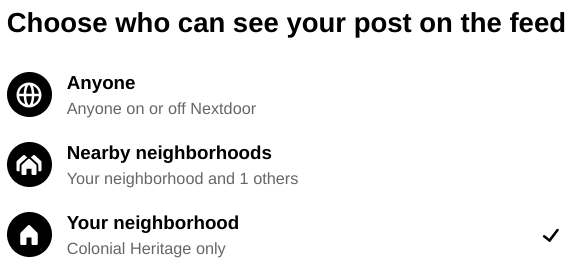
There have been questions about how Colonial Heritage residents can limit their posts to the CH community. In the Nextdoor app, you can read, comment or write your own posts. The Nextdoor News Feed contains information from as many or as few neighborhoods as you’d like to follow. You can choose to view news about all of the neighborhoods in the area or just your own. The same options are available when posting.
You can address your post to:
- “Anyone” which is the default,
- Our Colonial Heritage Community,
- Specific Groups to which you belong, or
- Nearby neighborhoods you have chosen in your profile to follow
- On the main menu click on the “Post +” button.
- Compose your text, polls, photos, videos, etc.
- Click on “Next” and select your audience from the dropdown list. The default is to post to “Anyone”.
- Optionally select any Group you’d like to include.
- Review and press “Post”.
How to control the neighborhoods you see in your neighborhood list:
Click on your name, “view profile”.
- Click the Gear Symbol
and select “Neighborhoods”.
- From the menu select “Neighborhoods”.
- Turn off the neighborhoods you don’t want in your list by selecting “Unfollow”. These Neighborhoods will no longer show in your list of nearby neighborhoods when posting.
- You can selectively turn area neighborhoods on/off during the posting process.
Monday, September 25, 2023
Wireless Network Optimization
By Calvin Croucher
This is a story that may sound familiar to some of you and your own home wireless network.
Recently, I was contacted by a homeowner who expressed concern that his wireless network wasn’t working correctly. He said, “My internet seems to cut on and off”. The homeowner scheduled an assessment. I asked, “What speed are you paying for?” He answered, “150Mbps”. First, I rebooted the modem-router, aka the Gateway. Then, I checked that the router's firmware version was current. Next, I measured the speed in megabits/second and signal quality in milliseconds by connecting directly to one of the available Ethernet ports. Results were well above the subscribed service level. Now here is where things got interesting. I measured the wireless bandwidth and signal strength at key locations throughout the house. The speed test results were “very disappointing”. None of the measurements were within ¼ of the rated speed! That means for a service that might be costing $90/month the homeowner was only receiving service that should have cost him $25/month!
So now what? Well, since the router was over 5 years old and runs on wireless N technology the recommendation was clear. Time to upgrade. But to what? There are generally two options. A Gateway, which is a device that contains a modem and a router or a modem along with a multi-node WiFi-6 mesh network. Generally, the cost is very similar so the clear choice, especially for multiple floor living, is to implement a mesh network. A Mesh network provides whole house coverage and can be expanded to three or more nodes as needed. Most mesh networks operate with wireless, beamforming, blended 2.4Ghz and 5Ghz technology. They are good for Gigabit speeds between nodes that can support more than 100 networked devices. An added bonus is that each mesh node generally comes with 2-3 Ethernet ports so TVs and computers can be hard wired to receive very stable signals.
So, after registering a new cable modem with the ISP, providing them with the make, model, serial number and MAC address and configuring a 3-node mesh network strategically placed in the customers house, how do things look? As Captain Kirk likes to say, “Warp Speed Scotty!” All points throughout the house now receive speeds well in excess of 100Mbps. Mission accomplished. No more buffering, no more dropouts.
If you have questions or would like to see if your home network is performing at its best contact me for help.
Campsite.bio/TheCroucherGroup
How to connect a Mesh router to an Optical Network Terminal
Mesh routers are becoming increasingly popular among Colonial Heritage homeowners. Why? Because they offer a way to extend strong Wi-Fi coverage throughout a larger space or multiple floors without sacrificing speed or reliability. However, setting up a mesh router can sometimes be tricky, especially if you need to connect it to an ONT (Optical Network Terminal) that provides internet access through a fiber-optic network. Verizon FiOS has always used fiber and Cox is now rapidly expanding their own fiber throughout Colonial Heritage. In this article, we will provide a step-by-step guide on how to connect a mesh router to an ONT and get your Wi-Fi network up and running in no time.
Step 1: Gather your equipment
Before you start connecting your mesh router to the ONT, you will need to gather the necessary equipment. This will typically include the mesh router itself, an Ethernet cable, and the power supplies for the mesh router and each mesh node. You may also need a device such as a laptop or smartphone to configure the mesh router's settings, depending on the specific model.
Step 2: Locate the ONT
The ONT is typically located on the utility side of your home, within the home smart panel or in your garage, and is usually installed by your internet service provider (ISP). The ONT is the device that receives the fiber-optic cable from the outside and converts it into a signal that can be used by your router and other devices in your home.
Step 3: Connect the mesh router to the ONT
To connect the mesh router to the ONT, you will need to use an Ethernet cable. Connect one end of the Ethernet cable to the WAN (Wide Area Network) port on the mesh router, and the other end directly to the LAN (Local Area Network) port on the ONT. Make sure the Ethernet cable is securely connected to both devices. Yes, you read this correctly, you do not need to rent a Gateway from Verizon or Cox if you have an ONT and plan to use a Mesh router!
Step 4: Power on the mesh router
After connecting the mesh router to the ONT, you can now plug in the power supply for the mesh router and turn it on. The mesh router should start up and begin broadcasting a Wi-Fi signal. If you have a smartphone or laptop handy, you can try connecting to the Wi-Fi network to confirm that it is working properly.
Step 5: Configure the mesh router settings
Once the mesh router is connected to the ONT and powered on, you should configure its settings to ensure that it is working optimally. This may include setting up the Wi-Fi network name and password, configuring parental controls, or adjusting other settings such as a recommended weekly automatic reboot schedule. Consult the user manual for your specific mesh router model for instructions on how to access and configure its settings either directly through the router's IP address or through the router manufacturers provide mobile app.
In conclusion, connecting a mesh router to an ONT is a relatively straightforward process that can greatly improve your Wi-Fi coverage and performance. By following the steps outlined in this article, you should be able to connect your mesh router to the ISPs ONT and get your Wi-Fi network up and running in no time. If you encounter any issues or have questions, don't hesitate to contact your ISP, the manufacturer of your mesh router or as always, The Croucher Group is happy to help.
Internet Gateway vs 3-Node Mesh Home Network
The internet has become an essential part of modern life, and with the increasing number of connected devices in homes, having a reliable and robust wired or wireless home network is more important than ever. When it comes to setting up a home network, two of the most popular options are a traditional internet gateway and a multi-node mesh network. In this article, we will compare these two options and explore the pros and cons of each.
A home internet gateway is a device that connects your home network to the internet. It is typically provided by your internet service provider (ISP) and is responsible for routing traffic between your home network and the internet. Most gateways are simple, single-unit devices that include a modem, router, and sometimes a switch. They are easy to set up and require minimal configuration, making them a popular choice for home users who want a hassle-free network setup.
On the other hand, a mesh network is a bit more complex and sophisticated solution that provides better coverage and performance. A mesh network consists of a series of devices, or nodes, that are strategically placed throughout your home. These nodes communicate with each other wirelessly, creating a seamless network that covers your entire home. Mesh networks are designed to be easy to set up and manage, with most systems offering mobile apps that allow you to monitor and control your network from your smartphone. Mesh networks often combine band steering which manages the blended use of 2.4 and 5Ghz with the faster 5Ghz always given priority and beam forming which shapes or focuses a wireless signal to a particular client connection.
One of the biggest advantages of a mesh network is its ability to provide better coverage and performance than a traditional gateway. A mesh network can cover a much larger area and provide better signal strength throughout your home. This is because the nodes communicate with each other, creating a network that is more resilient to interference and able to adapt to changes in your environment. Additionally, mesh networks are able to handle more devices simultaneously, making them ideal for homes with a large number of connected devices.
However, there are also some drawbacks to consider when choosing a mesh network. Firstly, they are more expensive than a traditional Gateway, as you need to purchase multiple nodes to cover your home. Additionally, they can be more complex to set up and manage, as you need to ensure that the nodes are placed in the optimal locations to provide the best coverage. This may require some trial and error, as well as some technical know-how and use of a signal strength meter.
On the other hand, a traditional gateway is a more straightforward and affordable option for most home users. It is easy to set up and requires minimal configuration, making it a popular choice for those who are not technically inclined. However, it may not provide the same level of coverage and performance as a mesh network, especially in larger homes or those with lots of interference.
In conclusion, both a traditional internet Gateway and a Mesh network have their pros and cons, and the best option for your home will depend on your specific needs and budget. If you have a larger home or a lot of connected devices, a mesh network may be the better option as it will provide better coverage and performance. However, if you have a smaller home or a limited budget, a traditional gateway may be the more practical option. Whatever you choose, it is important to ensure that your home network is secure and well-managed to ensure that you get the most out of your internet connection.
For more help contact the Colonial Heritage Tech Club.
Sunday, September 24, 2023
How to Choose your Next Computer?
Choosing the right personal computer can be overwhelming, as there are a variety of options available in the market. Here are some factors to consider when selecting your next personal computer:
Purpose: Determine the primary purpose of your computer. Will you use it for basic tasks such as web browsing, email, and document editing, or for more demanding tasks such as video editing or online gaming?
Operating System: Choose an operating system that best suits your needs. Windows is by far the most widely used operating system, while MacOS is popular among graphic artists. Chrome OS is the clear winner for lightweight instant on browser based computing.
Processor: The processor is the brain of the computer. For Windows and Mac look for a processor that is fast and powerful, such as an Intel Core i5 or i7 or an AMD Ryzen 5 or 7. For Chrome OS an Intel i3 or i5 is more than sufficient.
RAM: Random Access Memory (RAM) is essential for multitasking and running programs smoothly. Again for Windows and Mac aim for at least 8Gb of RAM, and consider 16Gb or more if you plan on running demanding programs. For Chrome OS 4Gb of RAM is sufficient.
Storage: Decide whether you need a traditional (spinning) hard disk drive, solid-state drive (SSD) or electronic multimedia card (eMMC). SSDs are faster and more reliable than traditional hard drives but are more expensive. eMMC is generally less expensive than SSDs, due to its lower performance and capacity.
Graphics: If you plan on using your computer for gaming or graphic design, consider a computer with a dedicated graphics card.
Keyboard: Nearly all keyboards are “chiclet” style. The only real choice is whether to get a backlit keypad or not. I personally always opt for a backlit keypad so I am able to work in a dimly lit or dark room.
Display: Choose a display that suits your needs. A larger screen is beneficial for multitasking and productivity, while a smaller screen may be more portable. Also, some laptops are available as 2 in 1 which function as a traditional laptop or by flipping the screen and keyboard it converts into a touch screen tablet.
Budget: Determine your budget and look for a computer that meets your needs.
Brand and Warranty: Consider purchasing from a reputable brand with good customer support and a warranty. Extended warranties are generally not necessary.
By considering these factors, you can select a personal computer that meets your needs and fits within your budget.
Contact the Tech Club if you’d like help.
Saturday, September 23, 2023
What are the Advantages of Mobile Home Internet over Cable Internet?
Friday, September 22, 2023
The New Improved Gen4 Tablo OTA Tuner / DVR
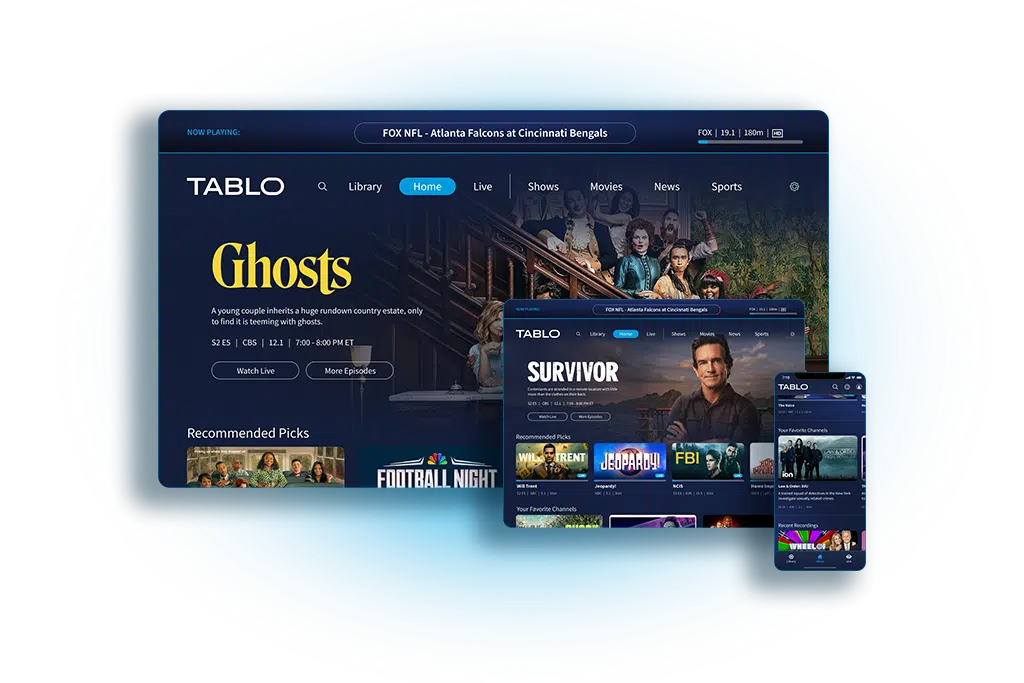
The newly redesigned Gen4 Tablo device will satisfy all of your Over The Air (OTA) and streaming needs for under $100. It lets you watch live and recorded shows for free, wirelessly, on any TV in your home using an OTA antenna, in beautiful HD quality.
The new Tablo integrates two OTA digital tuners along with a 128Gb DVR which is enough to receive, record and playback 50 hours of antenna based TV. The user interface also includes around 50 streaming channels from Scripps, the company who recently purchased Tablo.
Tablo sends a wireless signal to smart devices, allowing you to watch and record live TV shows on your smart TVs, phones and/or tablets anywhere in your home. The DVR is able to record approximately 50 hours of content with its onboard storage. But by adding an external DVR of up to 8Tb, you can record over 1000 hours or content.
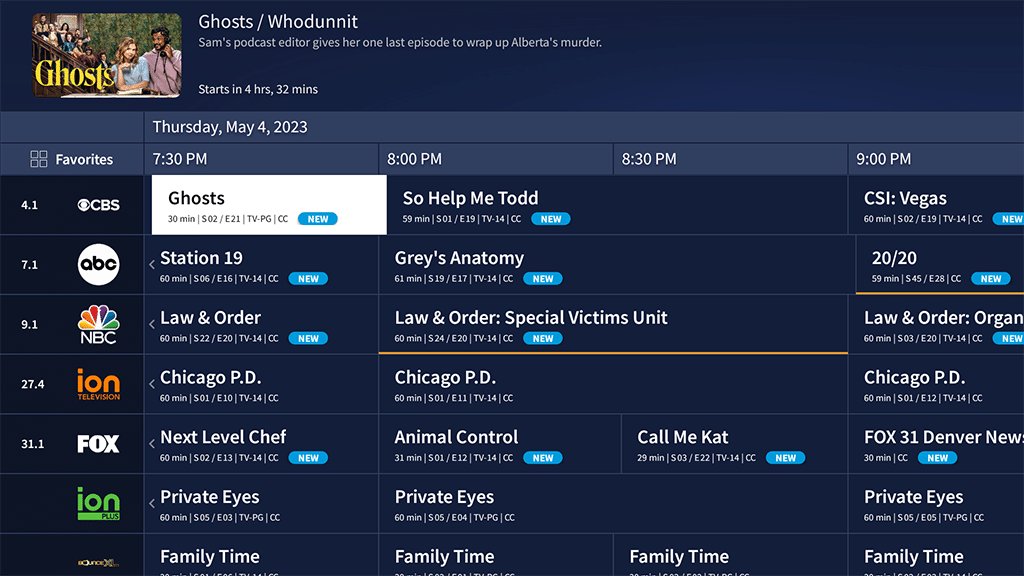
Tablo is also able to receive/record 50+ streaming channels via an integrated live channel guide. The two tuners allow the system to view or record two channels simultaneously on multiple TVs from several interfaces including Roku, Fire, Google and others. The device is now subscription free and also provides a free seven day 24 hour channel guide. A four tuner version is expected to be available in the future. The Tablo user interface is conveniently organized with a recordings library: a home screen which helps display content such as shows, movies, news and sports.
As with all OTA tuners, it’s recommended to run a channel scan quarterly. Tablo has this process down to a science with a simple, intuitive tuner interface that allows you to scan, select and deselect OTA and streaming channels directly from within the TV app. All TVs in the home then receive the same picture perfect HD signal.
You most likely won’t need them, but Tablo customer support is very good and you can actually speak to a real person!
The competition: Sling’s AirTV is the most significant competition. Similar to Tablo, the AirTV has both a two and four tuner model with either built in or external DVR options up to 8Tb. Sling integrates OTA, streaming and on-demand TV, movies, news and sports.
The bottom line: Is the new gen4 Tablo a good buy? In my opinion, yes it seems to be a good OTA digital tuner and recorder that also integrates popular streaming content.
Tuesday, January 25, 2022
Tech Club Streaming & OTA Cost Savings Calculator
Do you still get your TV content through Cable or Satellite? Or are you among the nearly 65% of the population who are planning to or have already “cut the cord” in favor of free and subscription based streaming service? Have you gone a step further and now watch TV for free using an antenna?
How many times have you seen a Cable company commercial where they try to tell you that you will pay more if you stream? The truth is cord cutting can be completely free or it could cost more than your current cable or satellite TV service. It all depends on what you watch and which subscription service you choose.
If you are someone who primarily watches local network TV, after installing a digital antenna, your monthly cost could be completely FREE. If on the other hand, you watch premium TV content your monthly cost will be based on what subscription services you want. One important difference between Cable and streaming is with streaming there are no contracts and you can cancel services any time you want.
How much does it cost to switch from Cable or Satellite to streaming or OTA? After switching what will you save? Let's look at a few examples. We will assume you are currently paying $150/month for Cable TV. To switch, you may need internet service which will cost approx $50/mo. If you go with free antenna based TV, you would first need to add a UHF/VHF antenna (especially in our area) which will cost approximately $125. You may want to add an optional DVR so you can record and watch TV at any time. That will cost $100. If you have multiple TVs you may want to add an optional streaming stick at $50/TV. This sounds like a lot but in reality your return on investment (ROI) for the internet with OTA TV is only 2.8 months with an annual savings of $1,200. If you go with the internet and a streaming service like Sling TV Blue (with 40 premium channels) your ROI would be 5 months with an annual savings of $660!
Don’t forget that with streaming you have hundreds of free services like Pluto TV, Tubi TV, Crackle TV, XUMO and many more. All with thousands of live and on-demand TV and movies.
If you’d like to calculate the cost savings possible from cord cutting, the Colonial Heritage Tech Club has developed a simple cord cutting calculator that will determine your ROI and annual cost savings.
Visit us on our Tech Club website, Facebook or Nextdoor. We’d love to hear about some of your own cord cutting experiences.
Saturday, February 27, 2021
Chromecast with GoogleTV: The New Streaming King?
At the end of 2020, Google released its newest streaming device ... Chromecast with Google TV. As many of you know, there are several well established competitors on the market including Roku, Fire TV and Apple TV. So, is Chromecast with Google TV better? Let’s look at the specs and take it for a “test drive".
A Chromecast dongle with a connected HDMI jack, USB-A to USB-C power cable with power adapter and 2 AAA batteries, a wireless remote control with Bluetooth and IR blaster, power, volume, mute, TV input selection and of course the amazing Google Assistant voice control as well as YouTube and Netflix shortcut buttons. As with all Google devices there is online help and support if you need it.
The device comes in 3 colors, White or much harder to come by Pink and Blue. The remote is very easy to use and similar to that of Roku. It controls your TV, speakers or a sound bar. You can even add a wireless keyboard, mouse, web camera or gaming remote. It supports 4k HDR 10+, Dolby Vision and Dolby Atmos sound. You can find all the major apps you need. Set up is simple - just plug-in, connect to WiFi, log into your favorite streaming services and start streaming!
Using the Device
The user experience is seamless. You don’t need to go into individual apps. The interface aggregates content you normally watch and displays it horizontally and vertically in categories. It is a very clean, visual and simple design to use. Just click on the show that is displayed and it will go directly into the app where it is located. You can also create a watch list. The system even plays your favorite music while looking for something else to stream. Let the system know your likes and dislikes and the interface will happily deliver more shows that fit your preferences, based on your personal user profile.
Can it be better?
There is always room for improvement:
- Currently you cannot log into a hotel’s secure WiFi network when traveling. This feature is available on Roku.
- The Google TV ecosystem of apps is large but not nearly as what is found in Roku.
At a competitive price of $49.00, many reviewers consider Chromecast with Google TV to be the best streamer on the market today … even better than the king of streaming - Roku. The most noticeable advantage Google TV has is that it reads the contents of all your subscription services and places it front and center for your viewing pleasure without unwanted advertising. Your paid subscription content watch lists are displayed in the Google TVs integrated user interface under the “For You” tab. The interface is similar to FireTV (which is licensed from Google) but Google raises the subscription integration to a much higher level. Google TV is content agnostic - meaning the search results do not favor one streaming service over another the way Fire seems to favor Prime video content.
The Bottom line - Chromecast with Google TV is a significant value for all the features that it offers. Time will tell but from my perspective it seems to be a winner!
If you have any questions contact us at Campsite.bio/CHTC
Glo Fiber in Colonial Heritage: I have Cox Cable Internet and TV so why should I switch to GloFiber Internet?
CH Tech Club - April 21, 2026 As many of you know, Glo Fiber will be available throughout all of Colonial Heritage in the coming months. Bu...
-
CH Tech Club - April 21, 2026 As many of you know, Glo Fiber will be available throughout all of Colonial Heritage in the coming months. Bu...
-
Finally, after a seemingly endless wait, Verizon FiOS Internet is beginning to expand its access in Colonial Heritage. Fiber trenching throu...
-
By Calvin Croucher Mesh routers are becoming increasingly popular among Colonial Heritage homeowners. Why? Because they offer a way to exte...